Skip to content
kuantrix.ai@gmail.com
Kuantrix Contact
Assessment apps for teachers

Assess your students with less paperwork and more time to teach.

Kuantrix brings data collection, attendance, grades and reports together in one place. It opens in the browser, works without internet, and student data stays on your computer only.

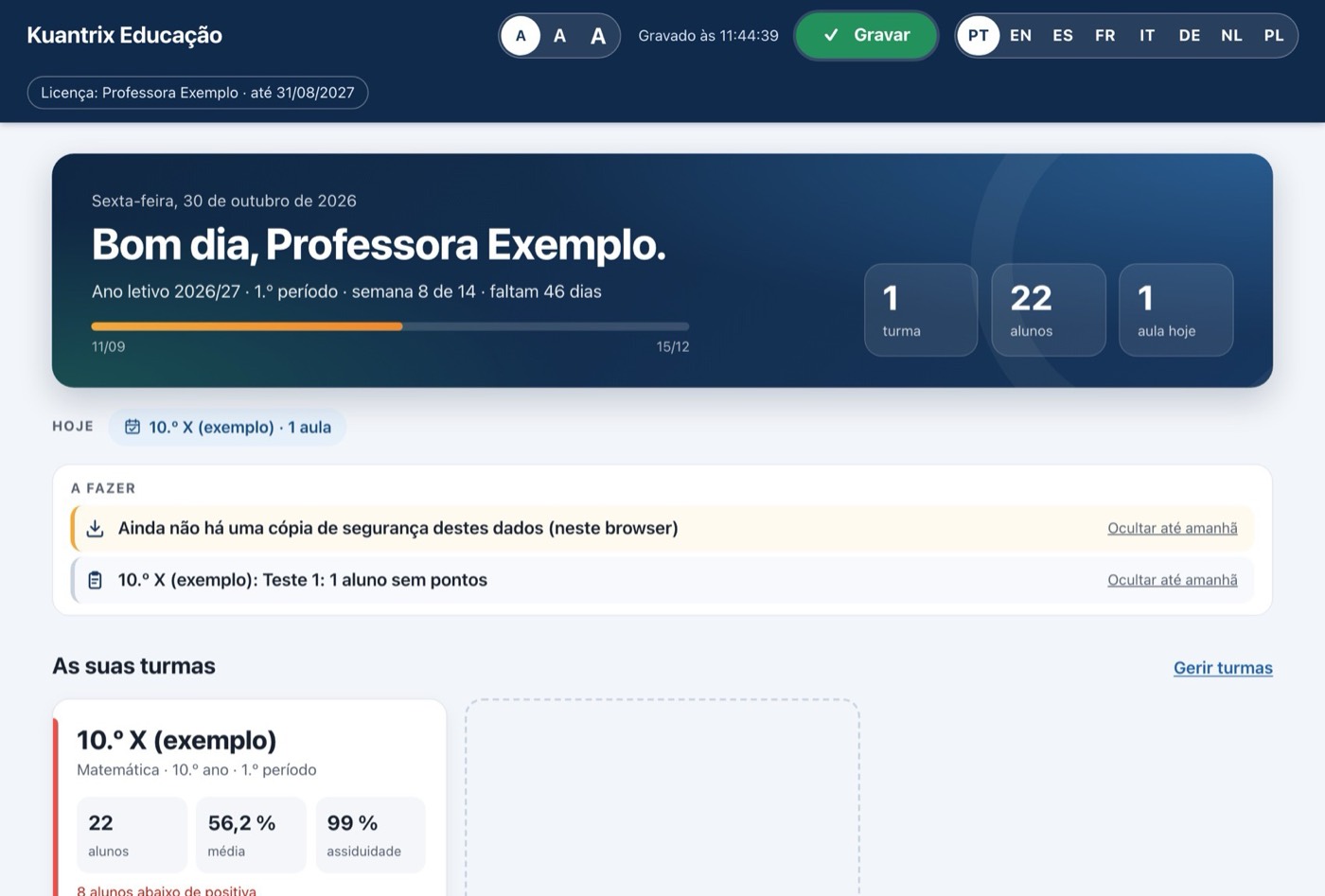
Kuantrix Education home screen: greeting, term progress, to-do list and the sample class card with average and attendance.
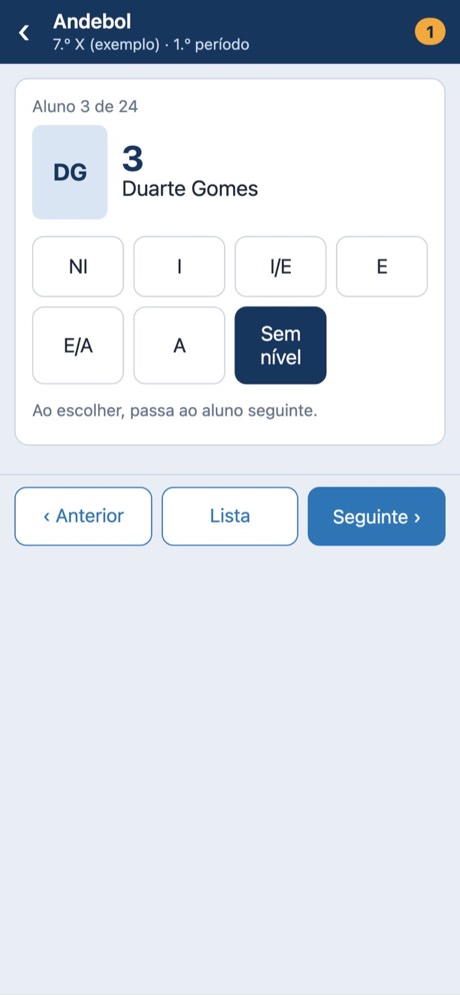
Quick entry on a phone: choosing a student’s level in Handball.
  • Nothing to installOpens in Chrome, Edge, Safari or Firefox, on Windows or Mac.
  • Works offlineAt school, in the gym or at home.
  • Data stays on your deviceNothing is sent to servers.
  • Word and ExcelReports and class workbook ready to use.
The apps

Two apps, one way of working

Choose the one for your subject. Both are organised the same way: classes, students, settings, data collection, attendance, grades, dashboard, forecasts, groups and reports.

Kuantrix Education

Available · version 1.4

For any subject: the teacher chooses the subject, the assessment instruments, the criteria, the weights and the scale.

  • Numeric or level-based scales, by terms or semesters
  • Tests and assignments with marks and ratings
  • Early warnings, recent progress and support groups
  • Multi-class report, and students who leave or transfer
  • In 8 languages, with the calendar and grading scale of 36 countries
Kuantrix Educação Física

Coming soon

Built for Physical Education in Portuguese schools, from year 5 to year 12. Interface in Portuguese.

  • Physical fitness with the FITescola healthy zones and athletic profile
  • Activities assessed by levels, with the best-activities rule by category
  • Group marking: pick students by photo and give the level to all of them at once
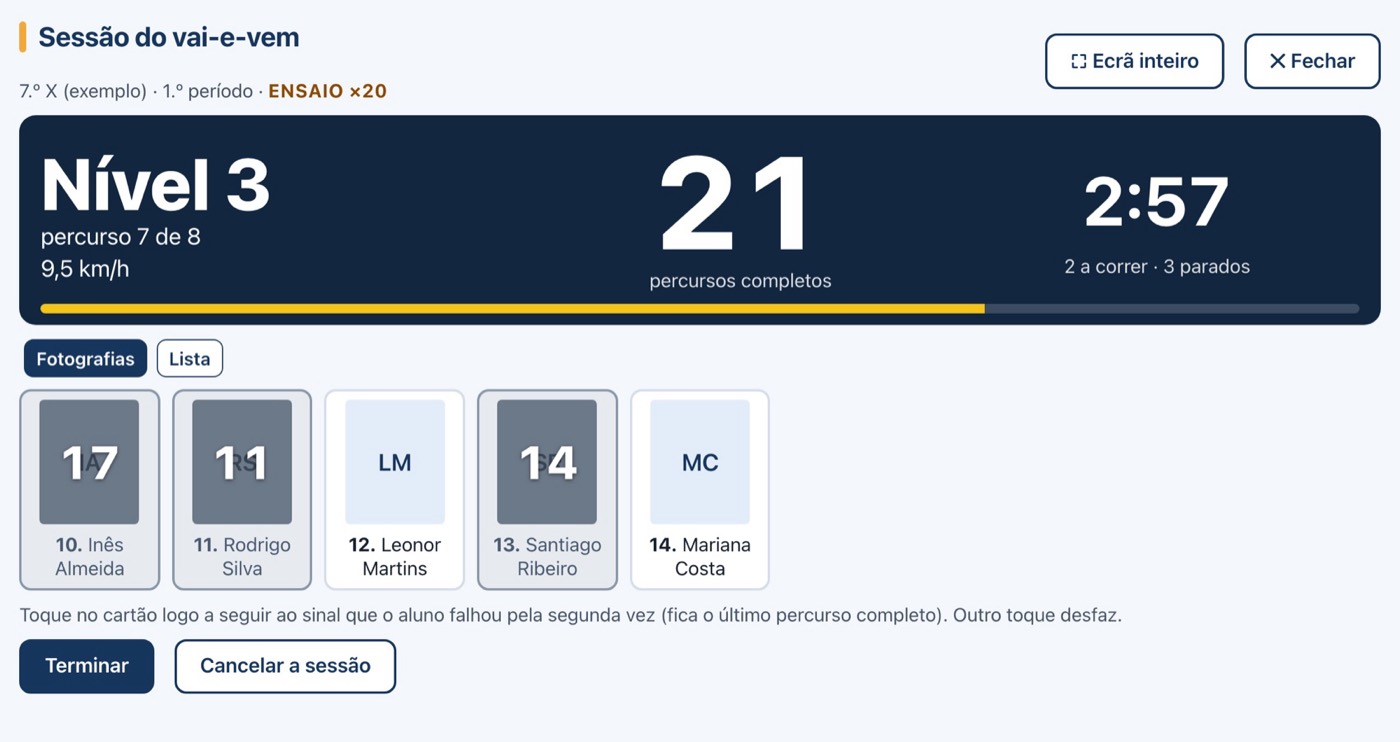
  • Shuttle-run session with audio signals, inside the app
  • Medical certificates with dates, knowledge and social-affective domain
Features

From the first day of class to the end of term

All images come from the app itself, with the sample class and fictitious students (interface in Portuguese).

In both apps

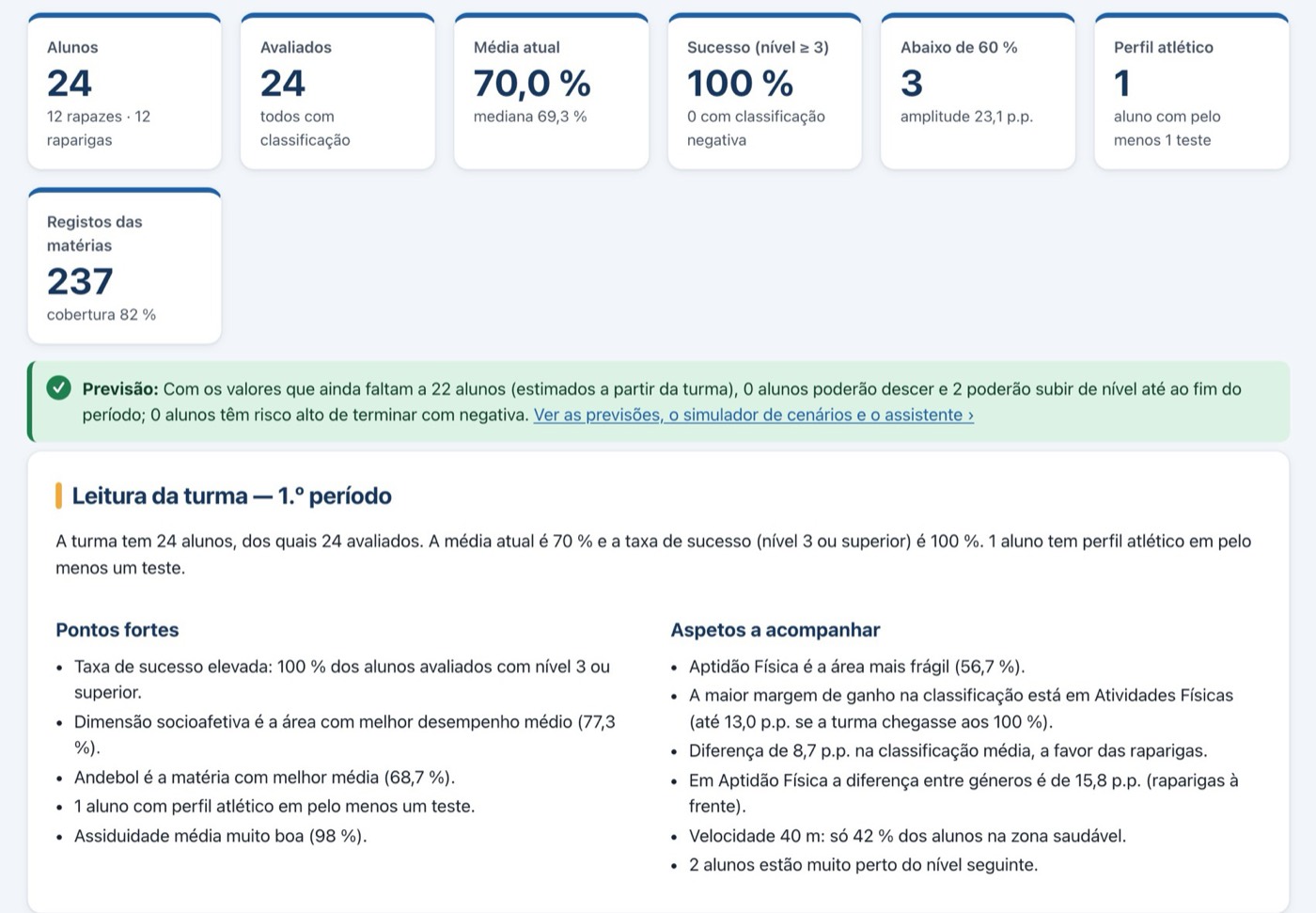
The class at a glance

Indicators, charts by gender and level, and a written reading of the class, with strengths and points to watch.

Everything is calculated instantly from the records you enter.

Class dashboard: students assessed, average, success rate, forecast and class reading with strengths and points to watch.
In both apps

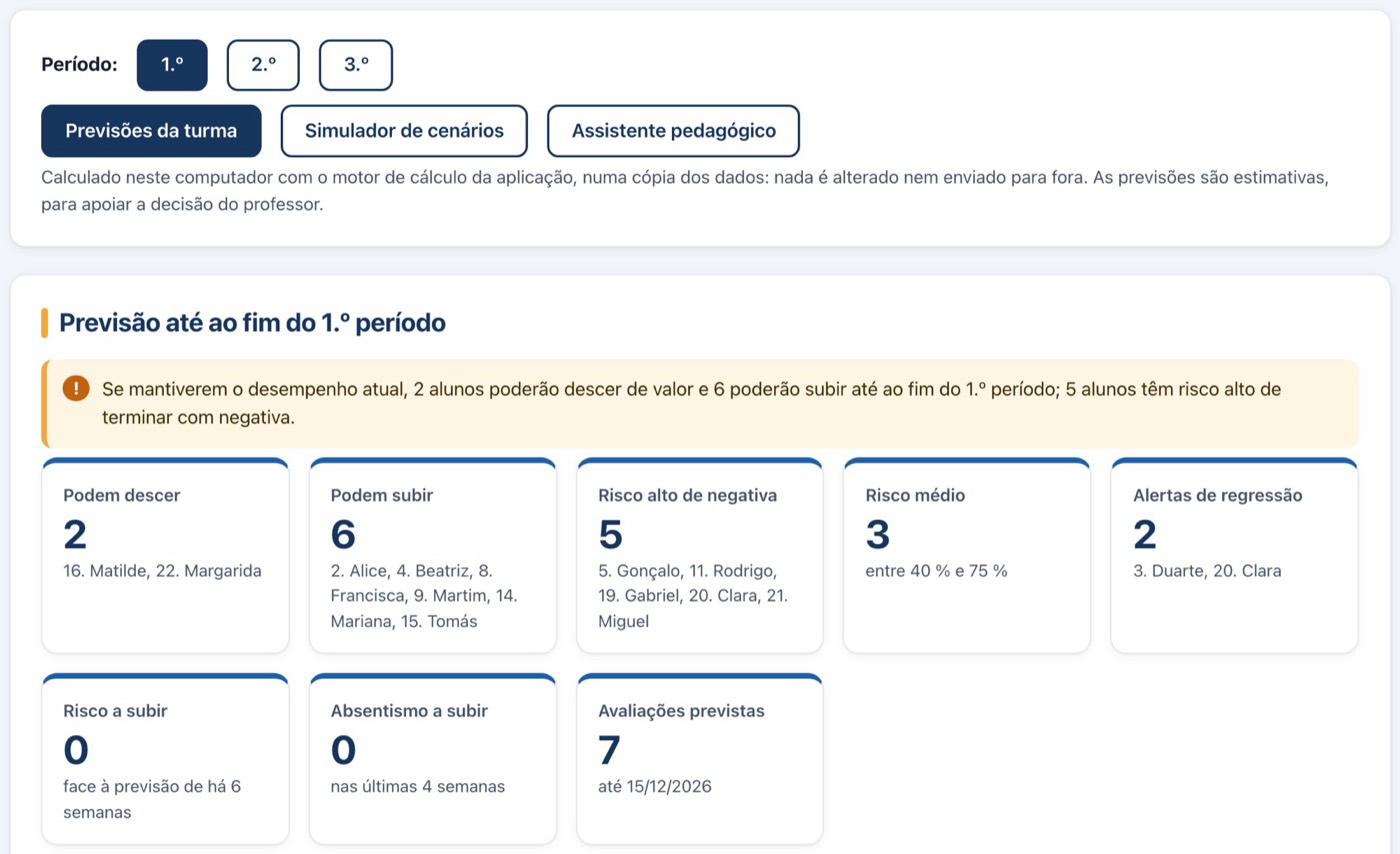
Know in time who needs help

Forecasts to the end of term, risk of a failing grade, regression alerts, a scenario simulator and a teaching assistant.

Everything is calculated on your computer: nothing is changed or sent anywhere. Forecasts support the teacher’s decision; they don’t replace it.

Class forecasts: students who may go down or up, high risk of a failing grade and regression alerts.
Physical Education

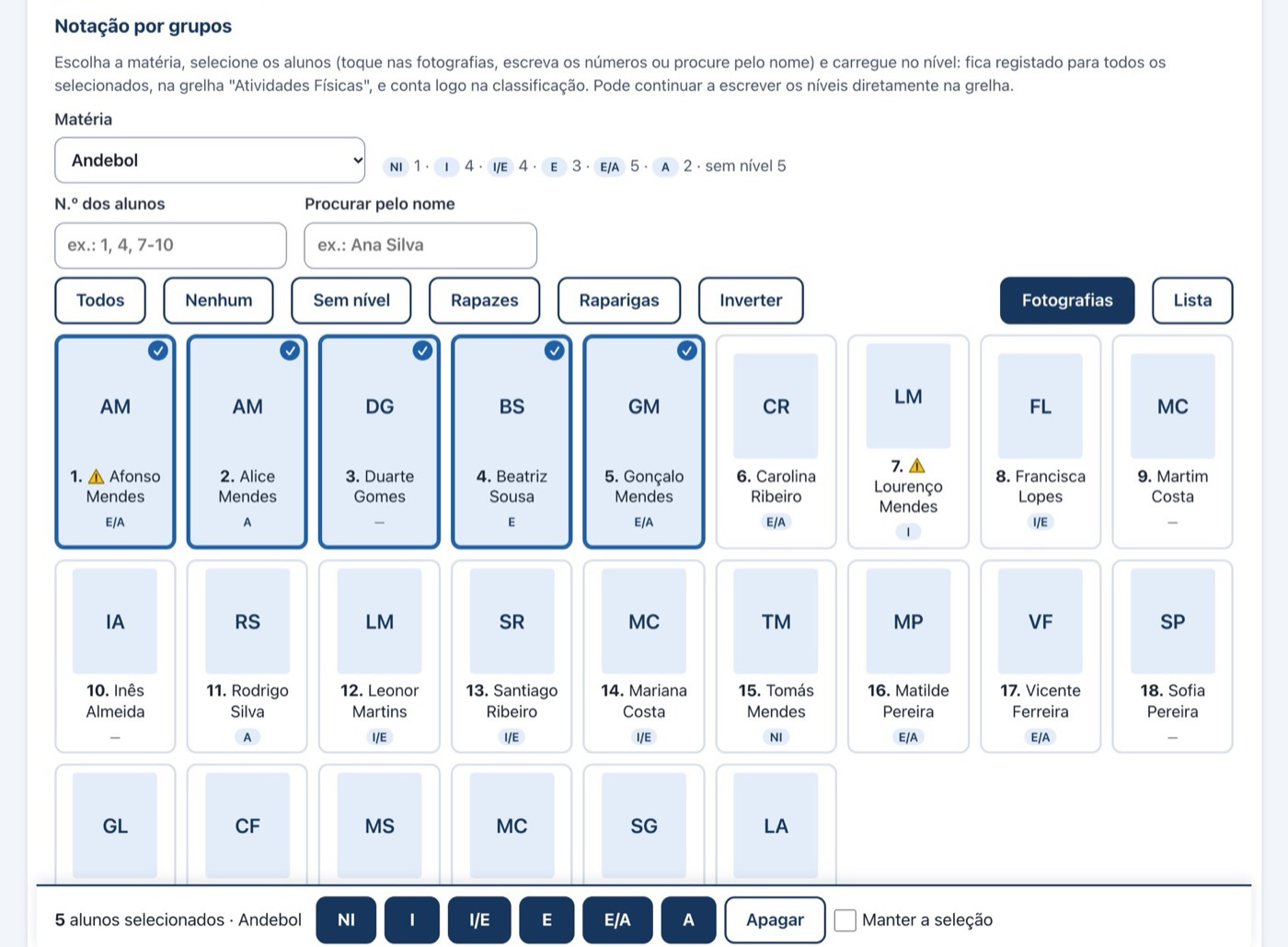
Assess a whole group at once

Choose the activity, tap the students’ photos (or type their numbers) and press the level.

It is recorded for every selected student and counts straight away in the grade.

Group marking in Handball: five students selected by photo and the level buttons at the bottom.
In both apps

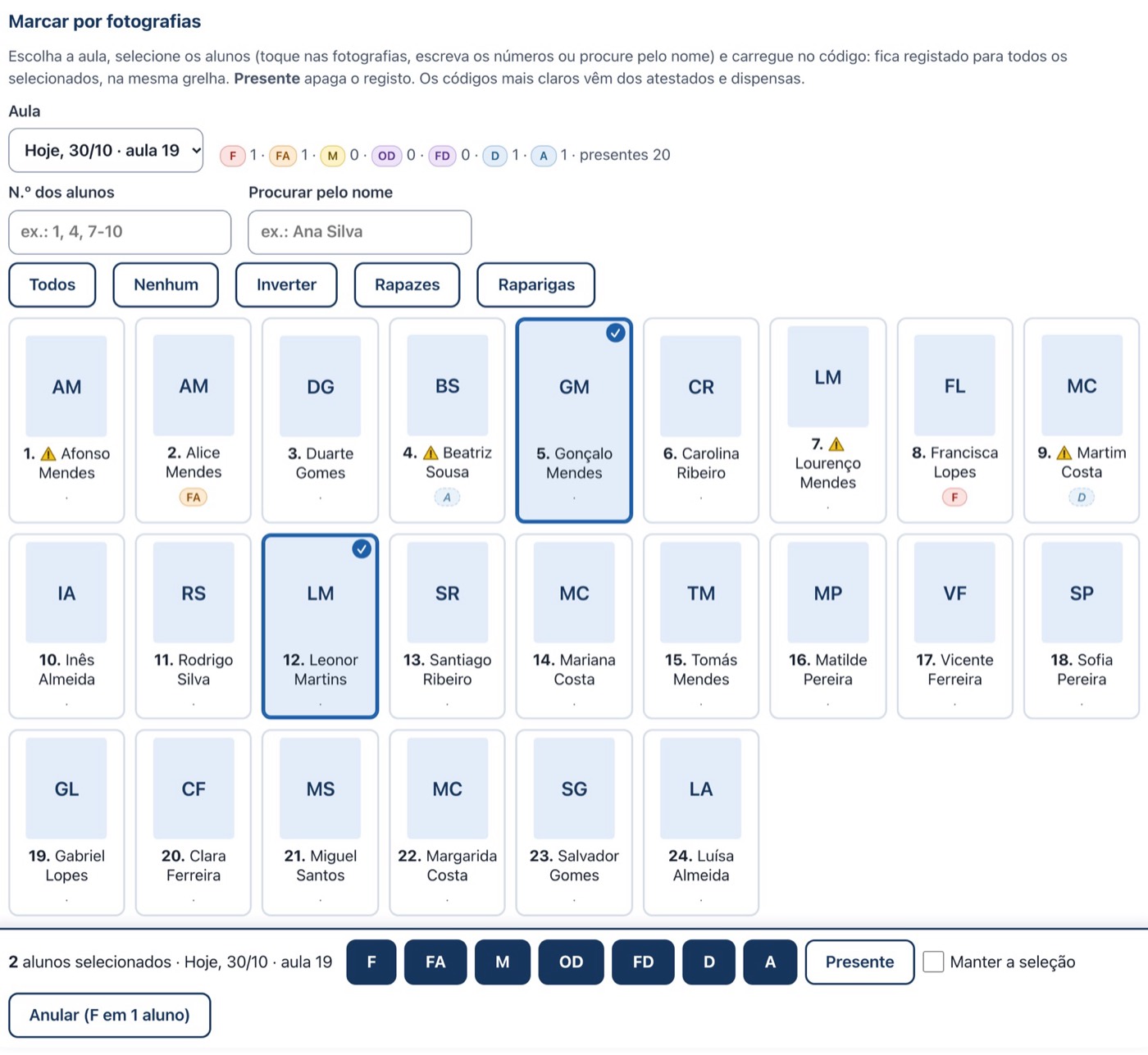
Take attendance while looking at the class

Choose the lesson, select the students by photo and press the absence code.

It is recorded for all of them at once, in the same attendance grid.

Attendance by photos: student cards with absence codes and the code bar at the bottom.
Physical Education

The shuttle-run session, inside the app

The audio signals play from the computer, at the FITescola or PACER pace. When a student stops, tap their card and the number of laps is saved.

At the end, review the results and enter them in the class.

Shuttle-run session: level, completed laps and time, with the cards of students who have already stopped.
In both apps

Working groups in an instant

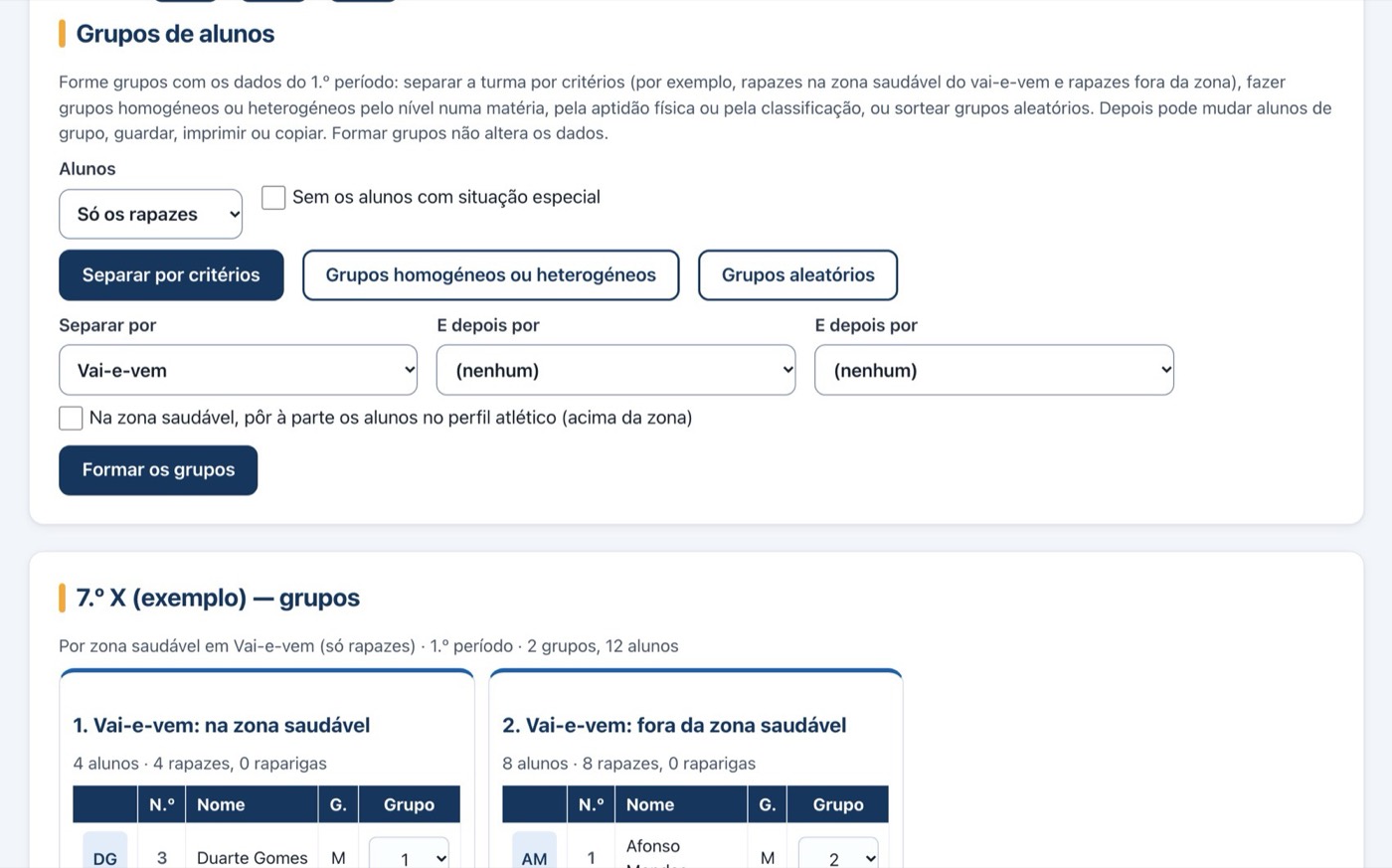
Split the class by criteria, form similar-ability or mixed-ability groups from the results, or draw random groups.

You can then move students between groups, save, print or copy. Forming groups doesn’t change any data.

Student groups: split by criteria, similar-ability or mixed-ability groups, random groups and the groups formed.
In both apps

Enter on the phone, merge on the computer

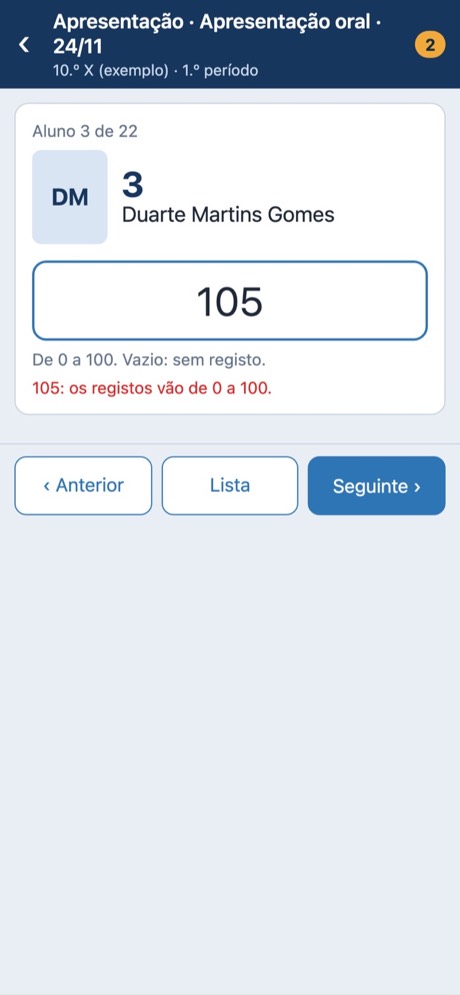
The quick-entry page opens on a phone or tablet: choose the class, enter student by student and send. The computer adds the values to the classes.

The sync file stays in a folder of yours (Google Drive, iCloud Drive…) and is password-protected.

Phone: choosing a student’s level in an activity.
Phone: entering a value student by student.
Kuantrix Education

In 8 languages, with the rules of 36 countries

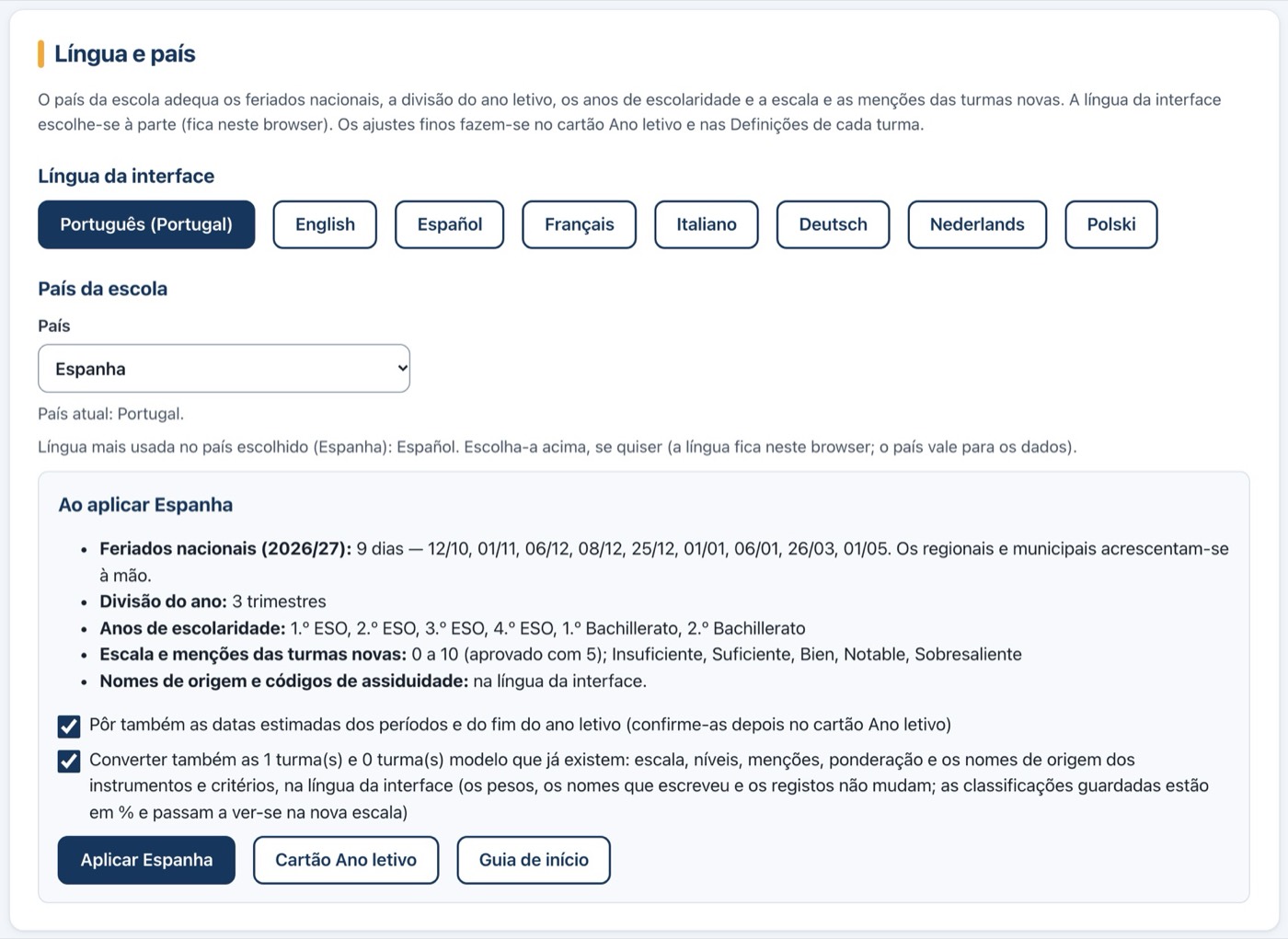
Portuguese, English, Spanish, French, Italian, German, Dutch and Polish.

The school’s country sets the holidays, how the school year is divided, the year groups and the scale for new classes.

Language and country: interface language and school country, with holidays, year division and scale.

And also, in both apps

Word reportsFor the class and for each student.
Class Excel workbookCollect data in Excel and import it back.
Paper formsGrids to fill in by hand during the lesson.
Summary for the class tutorTo print, save as PDF or open in Word.
Quick notesShort, dated notes about each student.
To doWhat still needs doing, right on the home screen.
Template classesAnd previous school years always at hand.
BackupComplete, or only the parts you choose.
Leavers and transfersStudents who leave or join mid-year.
Getting-started guideThe first steps, in order.
Larger textThree text sizes, for comfortable reading.
Installable versionWith its own icon, on computer or tablet.
Privacy

Student data never leaves your device.

There are no accounts to create and no online databases. What you record is stored in your computer’s browser, and only there.

  • Stored locallyClasses, grades and photos stay on your computer.
  • Licence checked on the device itselfThe app doesn’t need an internet connection to confirm the licence.
  • The backups are yoursExport the backup to a file whenever and wherever you like.
  • Sync through a folder of yoursThe computer and the phone exchange a password-protected file in the folder you choose.
Licence

How to get the licence

Kuantrix Education works on an annual subscription. You request it by email, in three steps.

  1. Open the appUse the web version or the file you received, in the browser you will be using.
  2. Send the codeCopy “This device's code” (Licence screen) and send it to kuantrix.ai@gmail.com with your name.
  3. Install the licenceWhen you receive it, paste it into “Install the licence”. It’s ready to use.
1 school yearThe licence is valid until 31 August.
Up to 5 devicesFor example, your school computer and your home one.
PersonalThe holder’s name appears on reports.
Read-onlyWithout a valid licence, you can view, print and export data.

Each browser on each computer counts as one device. Don’t use private windows or clear the browser data: the code would change and you would need a new licence.

FAQ

Before you start

Do I need to install anything?

No. The app opens in the browser (recent Chrome, Edge, Safari or Firefox), from the web version or from a file on your computer. If you prefer, the web version can be installed as an app, with its own icon.

Does it work offline?

Yes. Once opened or installed, it works without a connection. Internet is only needed to receive new versions of the web version.

Does it work on Windows, Mac, tablet and phone?

Yes, on any computer with a recent browser. The full app is for computers and tablets; on a phone, use the quick-entry page.

Where is student data stored?

Only in the browser of the device where you record it. Nothing is sent to the internet. So export a backup regularly (Tools › Backup) and keep it somewhere safe.

Can I use it on my school computer and at home?

Yes. Each licence allows up to 5 devices. To have the same data on both, use the backup or sync.

What happens when the licence expires?

The app becomes read-only: you can still view the data, print the reports and export them, but you can’t change them. Renewing gives you a new licence for the next school year.

How do I get new versions?

In the web version, the new version downloads by itself and the message “A new version of the app is available” appears. With the file, just replace index.html with the new one, in the same folder: your classes and licence stay there.

Contact

Get in touch

Licence requests, questions and suggestions: we reply by email.